
How To Schedule Notes on Substack (The Complete Guide)
Everything the official docs don't tell you

In March 2026, Substack added a native scheduler to the platform (finally!).
That means that you no longer have to open the app and post your Note manually. You can build a queue up to 3 months in the future.
But let me tell you, they built it in a way that only the engineers who developed it can understand how to use it.
In this article, I’ll show you EXACTLY how to manage your drafts and how to schedule your Notes.
Before we dive in, if you’re serious about growing on Substack, you’ll probably hit the limits of the native scheduler pretty quickly.
It lets you schedule one Note at a time, manually, with no way to bulk import, bulk schedule, reorder your queue, or organize by topic. That’s fine for occasional notes, but not for creators who publish consistently.
That’s exactly why I built WriteStack. It’s a tool designed for Substack creators who want to schedule dozens and hundreds of Notes in seconds, triage their notifications and manage their Substack without burning out.
Laptop Scheduling
First of all, you need to create a new Note. Click the ‘What’s on your mind?’ button to start writing.
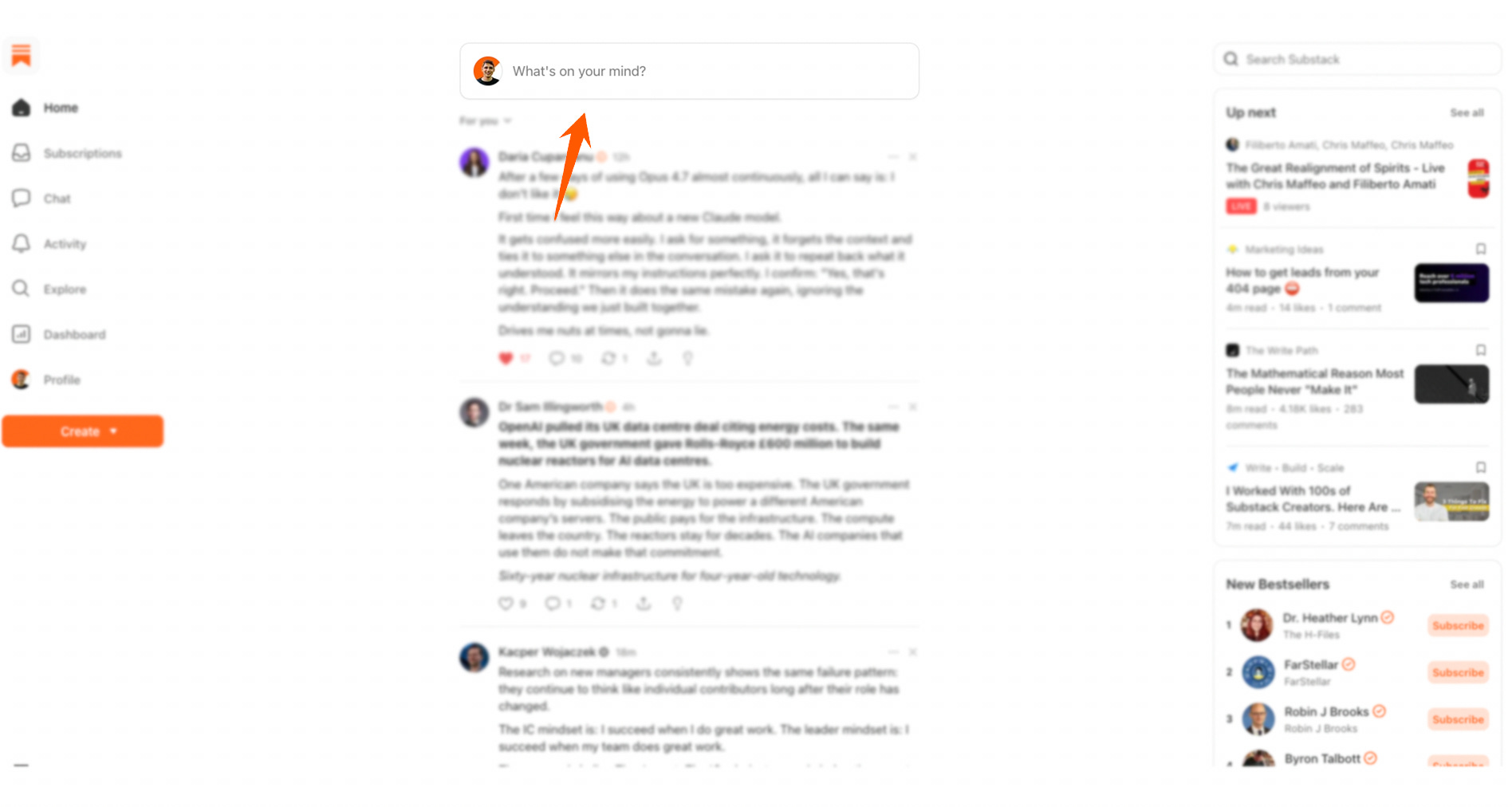
This window will open:
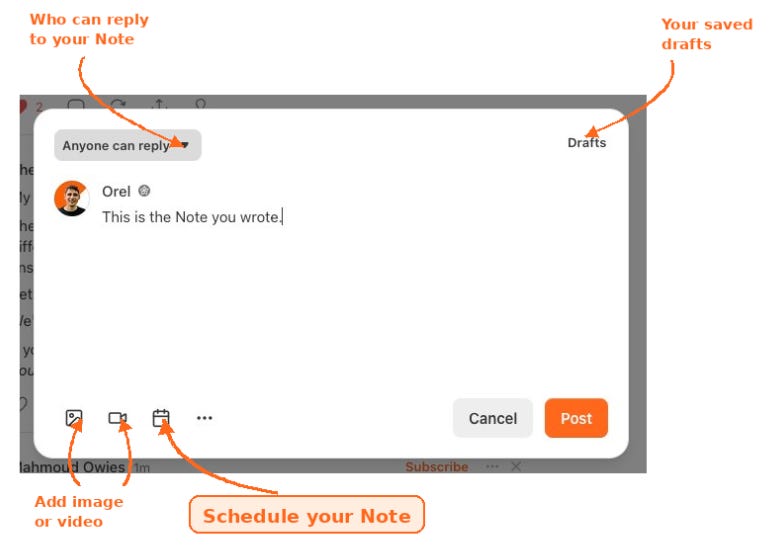
Once you have completed your draft, you have a 3 options:
1. Save as draft
Click Cancel or click outside the editor to pop up the save window:
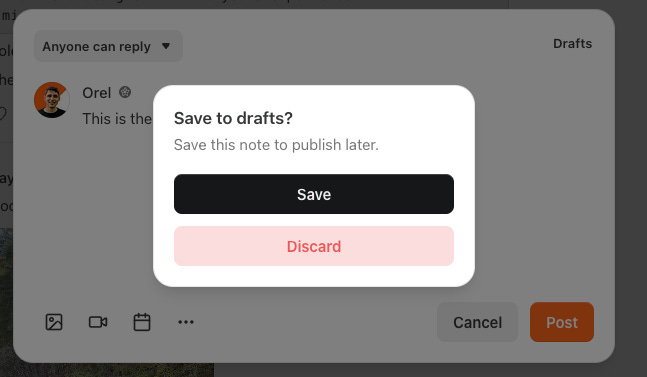
Click Save to save the Note in your drafts or Discard to remove it.
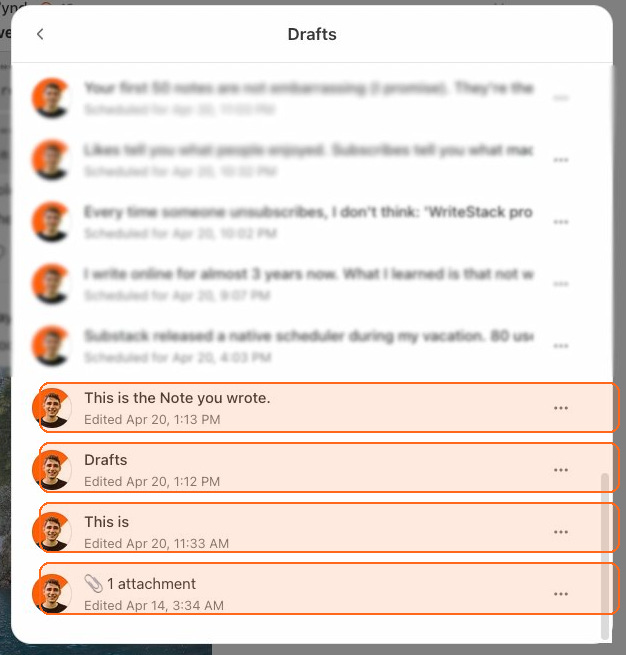
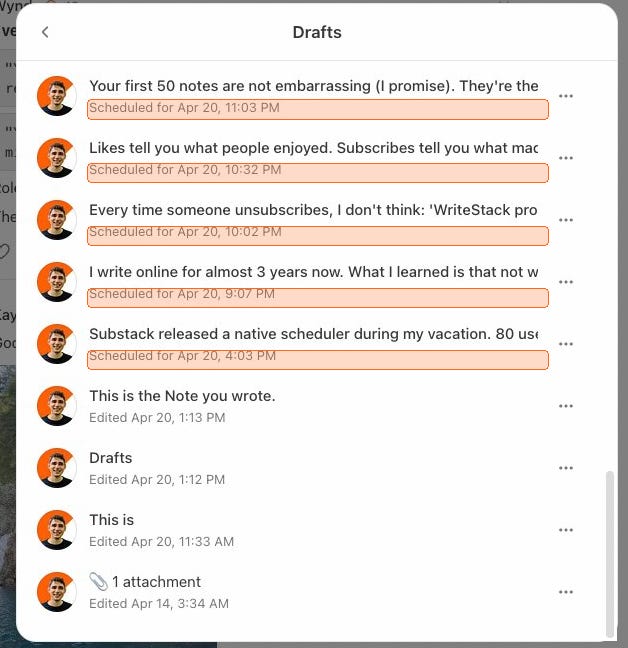
Now, once you save it, you’ll be able to see all your saved drafts in the Drafts list, by clicking Drafts.
2. Schedule the Note
Now this is why we’ve gathered here. Scheduling your Notes.
To schedule the Note that you created, you can either click any of your drafts or create a new Note, like we did before.
Instead of saving it as Draft, click the Calendar icon, pick a date and time, Click Save and then click Schedule
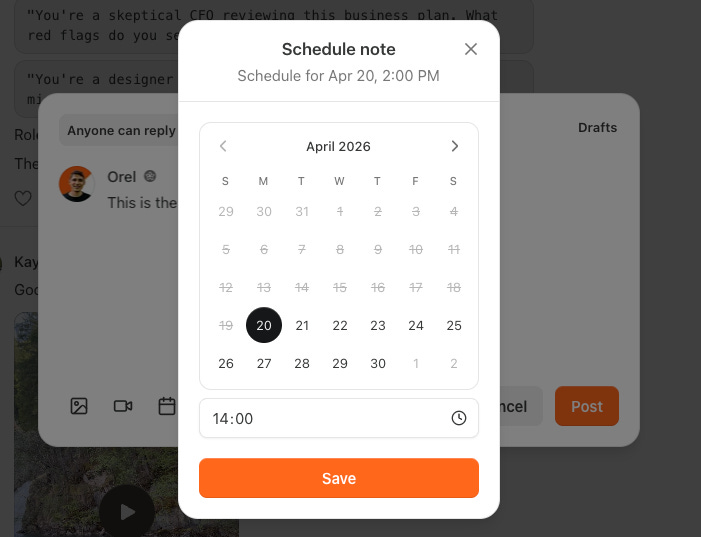
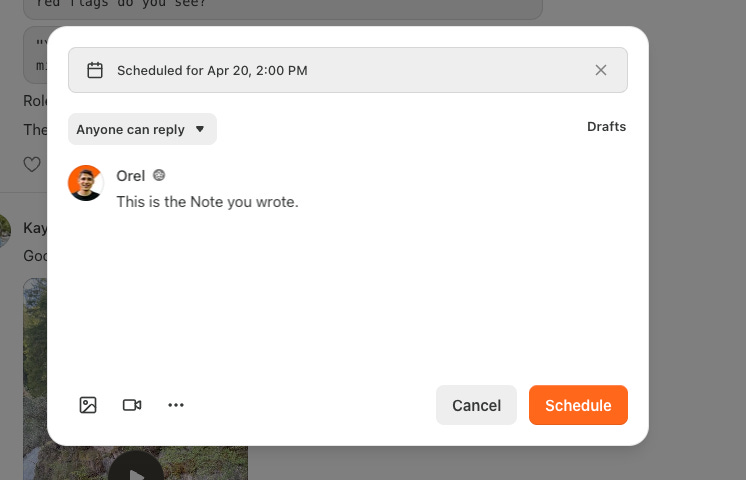
Now go back to your drafts and you’ll be able to see your schedules. You’ll be able to see the date to which they’re scheduled underneath the Note’s body.
3. Update a draft
Go to Drafts, Click the Note draft you want to edit. Change whatever you want, then click outside or Cancel. This window will pop up
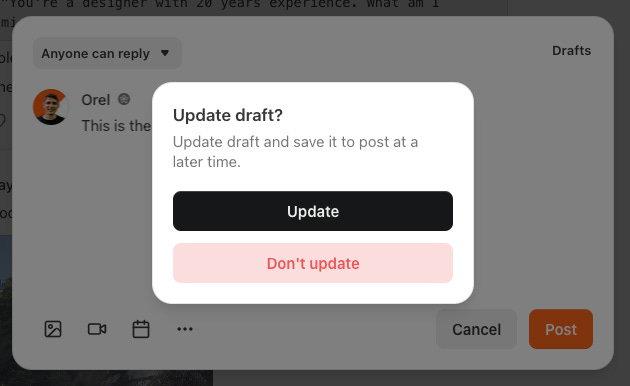
Choose to Update or cancel all changes (Don’t Update).
How to delete/edit a schedule
This is quite simple. Go to Drafts, Click the Note that you want to edit.
To update the date, simply click the Calendar, pick a different date, Save → Schedule.
Deleting a schedule, or unscheduling, is a bit more complex. Open the scheduled Note, Click the X next to the schedule at the top.
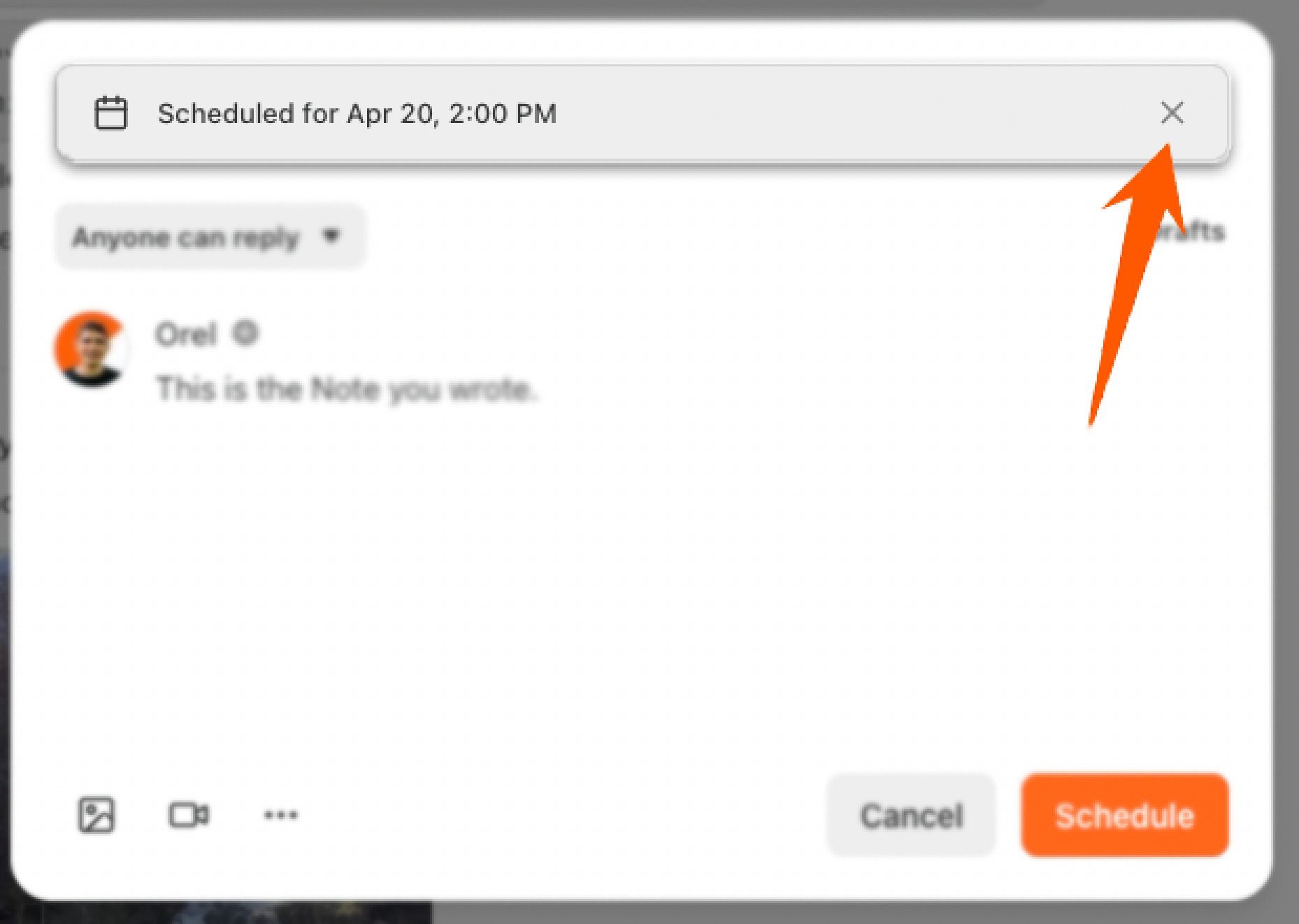
Then simply update, as I show before.
—
And that’s how you create and manage your schedules on Substack.
Mobile Scheduling
Now mobile is a whole other beast. At least on the Android version.
The logic is the same. The UI is completely different and unclear.
1. Save as draft
Click the + button to create your draft. Write whatever you want and

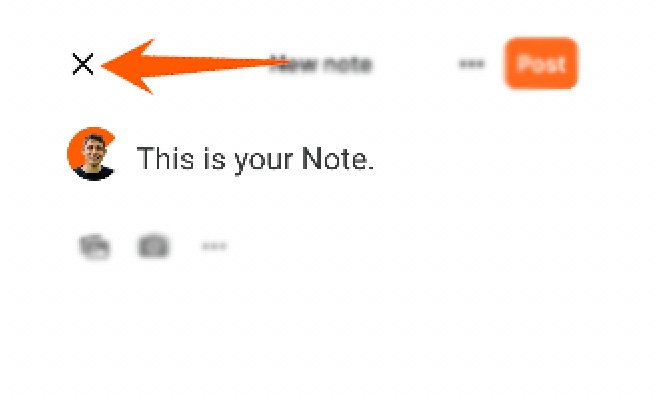
Then, to save the Note click on the X → Save draft.
2. Schedule the Note
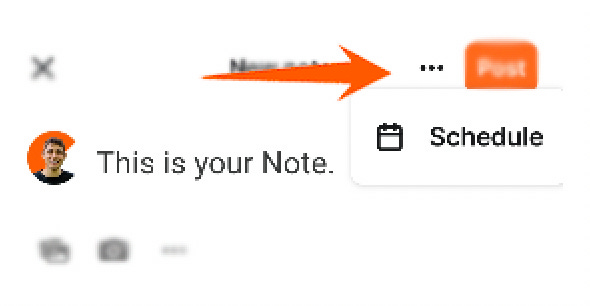
In order to schedule a Note, you need to click the 3 dots on the right side → Schedule
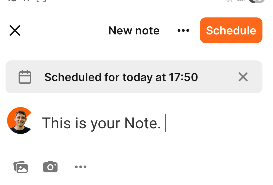
Pick a date and time → OK → Schedule
Word of caution:
When you choose time, make sure not to scroll too fast, or the app will crash (Android).
3. Update a draft
To update a draft, click the Draft you want to edit.
If it’s a scheduled Note, you can either click the date banner
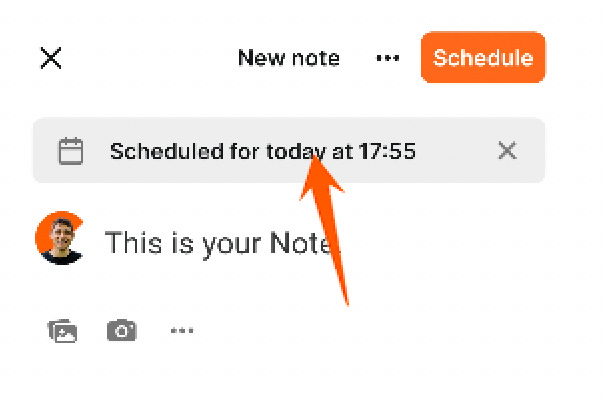
or the 3 dots → Edit Schedule to update your schedule.
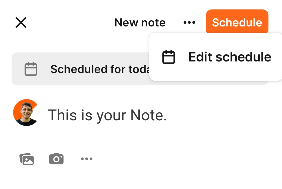
Then click the X, top left, to update/cancel update.
You should do the same if you want to edit the text of the Note. Just always remember to click the X before closing the app to make sure changes are saved.
The Limits
Substack’s scheduler does what it promises, but it’s built for occasional posting, not for creators with a real publishing system.
Here’s where you’ll start feeling the friction:
One Note at a time. There’s no way to bulk import or schedule multiple Notes in one sitting. Want to plan a week of content? Prepare at least 30-40 minutes to schedule.
No queue management. Once your Notes are scheduled, you can’t reorder them. Change your mind about the sequence? Unschedule, reschedule, repeat.
No organization. No tags, no categories, no evergreen queues. Everything lives in one flat draft list.
No performance visibility. You can schedule Notes, but Substack won’t tell you which ones actually converted subscribers, what time your specific audience engages most, or how your content is performing over time.
So, although it solves a HUGE problem, it’s done VERY poorly without considering the fact that the creators who use it are NOT engineers.
Now you know how to schedule Notes natively on Substack, and what its limits are. If you are a serious Substack creator, you’ll hit this wall (and many more) sooner or later.
Here's what the alternative looks like:
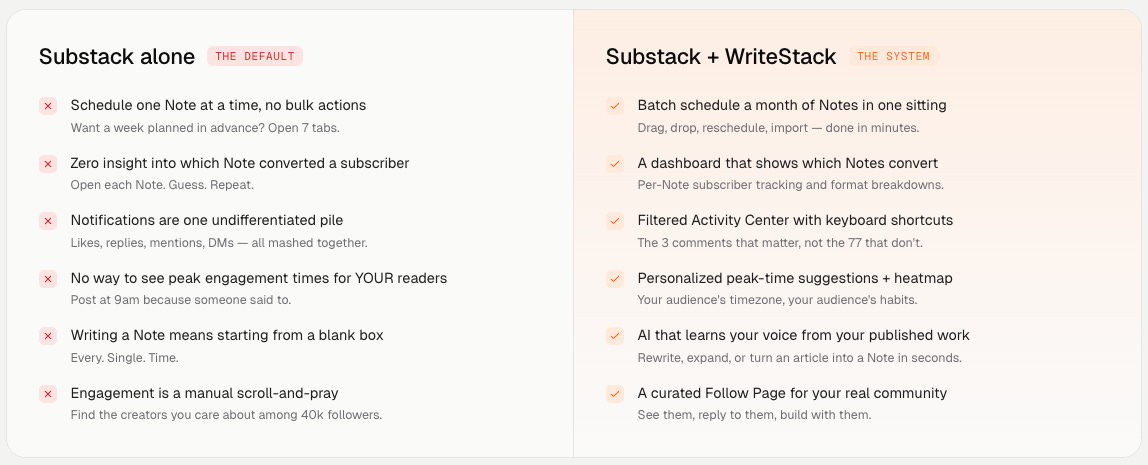
It’s built by a Substack creator (me), for Substack creators. You can try it and see if it fits how you work.